Special Effects and VFX in Alight Motion (Complete Beginner to Pro Guide) 2026
If you have ever watched a high-quality video edit on social media and wondered how creators add glowing effects, explosions, or cinematic transitions, the answer usually lies in special effects and VFX. These visual enhancements are what turn a simple clip into something eye-catching, engaging, and professional. Today, even mobile editors are achieving this level of creativity using apps like Alight Motion Mod Apk.
Alight Motion has changed the game for beginners and content creators who don’t have access to heavy desktop software. Whether you are editing TikTok videos, YouTube shorts, gaming clips, or aesthetic reels, the app provides powerful tools like keyframes, blending modes, and built-in effects that allow you to create impressive visuals directly on your phone. What once required advanced tools like Adobe After Effects can now be done in a simplified way without needing a high-end PC.
But here’s the reality: most people use Alight Motion only at a basic level. They apply simple presets and stop there. The real potential of the app lies in understanding how special effects and VFX actually work and how to combine different tools creatively. Once you learn this, your edits start to look more cinematic, more dynamic, and far more professional than average content.
In this guide, you will learn everything about special effects and VFX in Alight Motion, from basic concepts to advanced techniques. Whether you are a complete beginner or someone looking to improve your editing skills, this article will help you create effects that truly stand out.
You may also like Text and Titles in Alight Motion.
What Are Special Effects and VFX in Alight Motion?
When you start editing videos in Alight Motion, one of the first things you notice is how effects can completely change the look and feel of your content. But not all effects are the same. There is a clear difference between simple visual effects and what we call VFX, and understanding this difference is what separates basic editors from skilled creators.
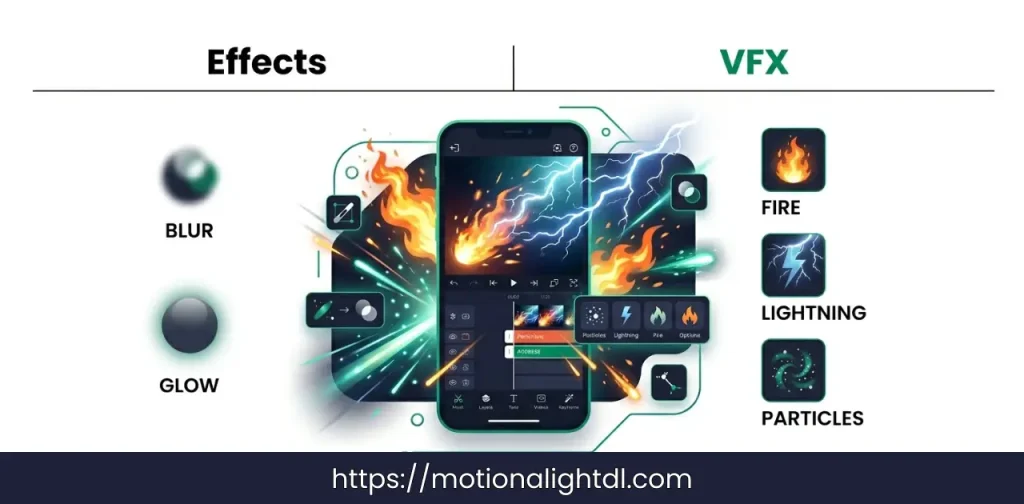
In simple terms, special effects are visual enhancements added to a clip to make it more attractive or dramatic. These can include things like glow, blur, shake, color filters, or transitions. They are usually applied directly using built-in tools and presets. For example, if you add a glow effect to text or apply motion blur to a moving object, you are using basic effects.
On a more technical level, VFX (Visual Effects) refers to the process of combining multiple elements such as video layers, particles, lighting, and animations to create something that does not exist in real life. This involves techniques like compositing, masking, keyframing, and blending different layers together. In short, VFX is not just applying an effect; it is building a complete visual illusion.
The key difference is this:
For example, adding a simple color filter to a clip is an effect, but creating a fireball coming out of someone’s hand using particles, glow, and animation is VFX.
You can see real-world examples of this everywhere. On YouTube, many creators use VFX to create cinematic intros, energy effects, or dramatic transitions in their edits. On platforms like Instagram and TikTok, reels often include glowing outlines, lightning effects, or slow-motion impact visuals to grab attention within seconds. In gaming edits, especially for titles like PUBG or Call of Duty, editors use VFX to add muzzle flashes, explosions, and screen shakes to make gameplay look more intense and professional.
This is exactly where Alight Motion becomes powerful. Even though it is a mobile app, it allows you to move beyond basic effects and start creating layered, animated visuals that feel much closer to professional editing. Once you understand how effects and VFX work together, you can transform simple clips into highly engaging content that stands out instantly.
Why Use Alight Motion for VFX Editing?
One of the biggest reasons creators choose Alight Motion for VFX is its mobile accessibility. You don’t need a powerful PC or complex setup. You can create and edit effects anytime, anywhere, directly from your phone. This is especially useful for content creators who make reels, short videos, or quick edits on the go.
Alight Motion also offers several powerful features that make VFX possible on mobile. These include keyframe animation for precise control, built-in effects and presets, blending modes for layering visuals, masking tools for custom effects, and basic 3D camera movements. Together, these tools allow you to create effects like glow, fire, motion blur, and even simple cinematic scenes without needing advanced software.
However, it’s important to understand its limitations. Compared to professional tools like Adobe After Effects, Alight Motion has fewer advanced features, limited plugin support, and can lag when working on heavy projects. Complex VFX like high-end 3D simulations or detailed compositing are still better handled on desktop software.
Core Tools Used for VFX in Alight Motion
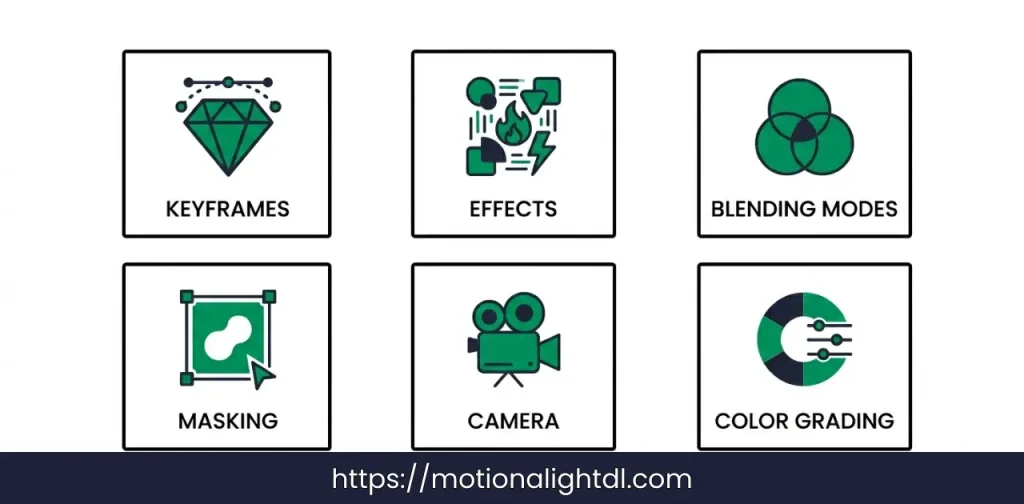
To create high-quality VFX in Alight Motion, you need to understand a few core tools. These are the building blocks behind almost every professional-looking effect you see in edits.
Keyframes and Animation
Keyframes allow you to control how an element moves or changes over time. For example, you can animate position, scale, rotation, or opacity. This is what makes the effects feel alive. Without keyframes, your edits will look static. Almost every VFX, whether it’s a glow effect or an explosion, depends on smooth and well-timed animation.
Effects & Presets Library
Alight Motion provides a wide range of built-in effects like blur, glow, distortion, and color filters. Presets help beginners apply these quickly, but real control comes when you customize the settings. Instead of relying only on presets, adjusting values manually gives you more unique and professional results.
Blending Modes
Blending modes are used to combine layers in a realistic way. Modes like “Add” or “Screen” are commonly used in VFX to merge light-based elements like fire, glow, or lightning with the background. This helps effects look natural instead of pasted on top.
Masking and Layering
Masking allows you to show or hide specific parts of a layer. This is useful when creating effects like light coming from behind an object or isolating a subject. Layering, on the other hand, helps you stack multiple elements together to build complex visuals step by step.
Camera & 3D Effects
With camera and 3D tools, you can add depth to your edits. Instead of flat visuals, you can create movement like zooms, pans, and parallax effects. This makes your VFX feel more cinematic and dynamic. Read a complete guide on Camera Objects in Alight Motion.
Color Grading Basics
Color grading is what gives your final video a consistent and professional look. Adjusting brightness, contrast, saturation, and tones helps blend all elements together. Even a good effect can look unrealistic if the colors don’t match the scene. Read about Layer Parenting & Null Objects in Alight Motion.
How to Create VFX in Alight Motion (Beginner Guide)
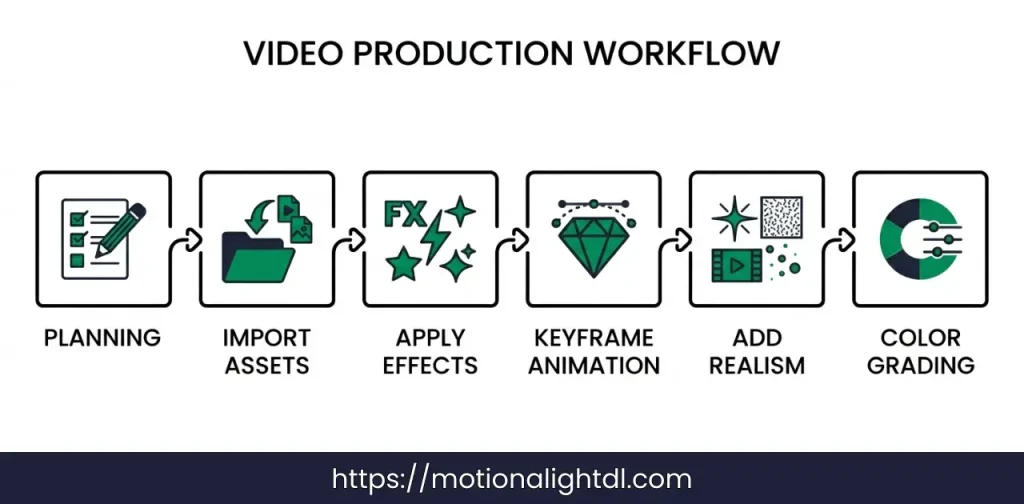
In Alight Motion, creating effects is not about pressing one button. It’s about combining multiple tools in the right order. Follow this simple workflow to create clean and professional-looking VFX, even as a beginner.
Step 1 – Planning Your Effect
Before opening the app, decide what you want to create. Is it a fire effect, glow outline, or explosion? Planning saves time and avoids random editing. For example, if you want to create a “magic power” effect, you already know you will need particles, glow, and animation. This clarity makes your workflow smooth instead of confusing.
Step 2 – Importing Assets (Images, Clips, PNGs)
Now import your main video and any extra assets like PNG effects, overlays, or stock clips. For example, if you are creating smoke or fire, you can import transparent PNGs or clips to enhance realism. Always organize your layers properly so you don’t get lost while editing.
Step 3 – Applying Effects
Select your layer and start applying effects like glow, blur, distortion, or color adjustments. Don’t just apply presets and move on. Adjust the settings based on your video. For example, increase intensity for dramatic scenes or keep it subtle for realistic edits. This is where your effect starts taking shape.
Step 4 – Using Keyframes for Motion
Now bring your effect to life using keyframes. Animate position, scale, rotation, or opacity over time. For example, if you are creating an energy ball, you can scale it up gradually and add movement. Smooth animation is what separates average edits from professional ones, so keep your transitions natural.
Step 5 – Adding Realism (Motion Blur, Glow, Shake)
To make your VFX look real, you need small details. Add motion blur to fast movements, glow for light-based effects, and slight camera shake for impact. For example, in gaming edits, adding a small shake during an explosion makes a huge difference. These details make your effect feel natural instead of artificial.
Step 6 – Final Color Grading
At the end, adjust colors to match everything together. Use brightness, contrast, and saturation to create a consistent look. If your effect looks too bright or doesn’t match the background, it will break realism. Proper color grading blends all elements into one clean scene.
If you follow this process step by step, you won’t just apply effects, you will actually understand how VFX is created. That’s what helps you improve faster and create edits that truly stand out.
Popular VFX Effects You Can Create in Alight Motion
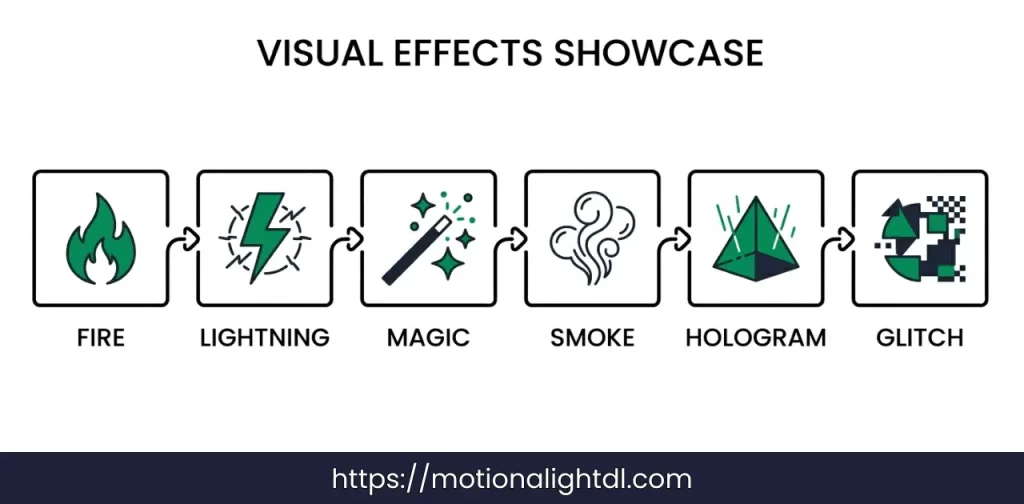
With the right use of tools in Alight Motion, you can create a wide range of effects that are commonly used in modern video edits. These effects are popular because they instantly grab attention and make your content look more professional.
Fire & Explosion Effects
Fire and explosion effects are widely used in gaming edits and action videos. You can create them by combining glow effects, color adjustments, and particle overlays. When paired with slight camera shake and motion blur, these effects feel much more powerful and realistic.
Magic & Energy Effects
These are commonly seen in reels and cinematic edits. Effects like glowing hands, energy balls, or aura outlines can be created using particles, light streaks, and blending modes. Smooth animation plays a big role here, especially when building up the energy gradually.
Lightning Effects
Lightning effects are great for dramatic scenes. You can create them using shape layers combined with glow and distortion. Adding quick flashes and syncing with sound makes the effect more impactful and realistic.
Smoke & Fog Effects
Smoke and fog add depth and atmosphere to your videos. These are usually created using overlays or soft blur effects with low opacity. They are often used in intros, transitions, or background enhancement to make scenes feel more cinematic.
Hologram Effects
Hologram effects give a futuristic look to your edits. By using glitch effects, color shifts, and transparency, you can turn normal footage into a digital-style projection. These are popular in tech-themed or sci-fi edits.
Glitch Effects
Glitch effects are widely used in fast-paced edits and transitions. They involve distortion, RGB split, and quick frame shifts. These effects work well in music edits and help create a modern, energetic feel.
Once you understand how to create these effects, you can mix and customize them based on your style. This is what helps your edits stand out instead of looking like basic presets.
Advanced VFX Techniques in Alight Motion
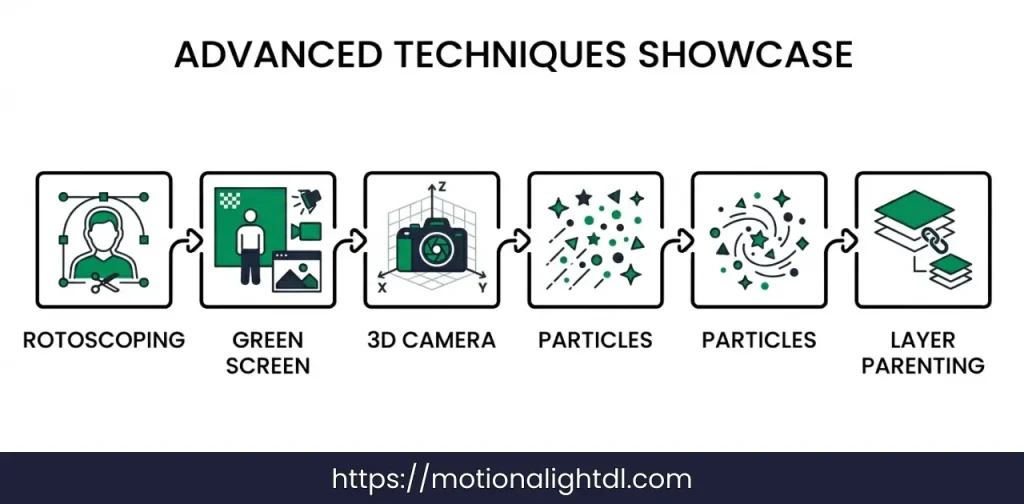
Once you are comfortable with basic effects, the next step is to use advanced techniques that give your edits a more professional look. In Alight Motion, these methods allow you to create complex visuals instead of relying on simple presets.
Rotoscoping (Manual Mask Animation)
Rotoscoping is the process of manually drawing masks frame by frame to isolate a subject. This technique is useful when you want to add effects behind or around a person, such as glow outlines or energy auras. It takes time, but the results look clean and highly customized.
Green Screen & Chroma Keying
Chroma keying lets you remove a green background and replace it with any scene you want. This is commonly used in YouTube edits and cinematic videos. With proper masking and color adjustment, you can place subjects into completely different environments.
3D Camera Movements & Parallax
Using camera tools, you can create depth by moving layers at different speeds. This is called parallax. It gives your video a 3D feel, making it more dynamic compared to flat edits. Simple zooms, pans, and depth adjustments can make a big difference. Read this guide to learn about Camera Objects in Alight Motion.
Particle Systems for Realistic Effects
Particles are used to create effects like sparks, magic dust, fire, or explosions. Instead of static visuals, particles move naturally and add realism. Adjusting size, speed, and direction helps you control how the effect behaves in your scene.
Layer Parenting for Complex Animations
Layer parenting allows one layer to follow another. This is useful when you are working with multiple elements that need to move together, such as text with effects or objects with attached particles. It makes complex animations easier to manage.
These advanced techniques require practice, but once you understand them, your editing level improves significantly and your VFX starts to look much more professional.
How to Make Your VFX Look Realistic (Pro Tips)
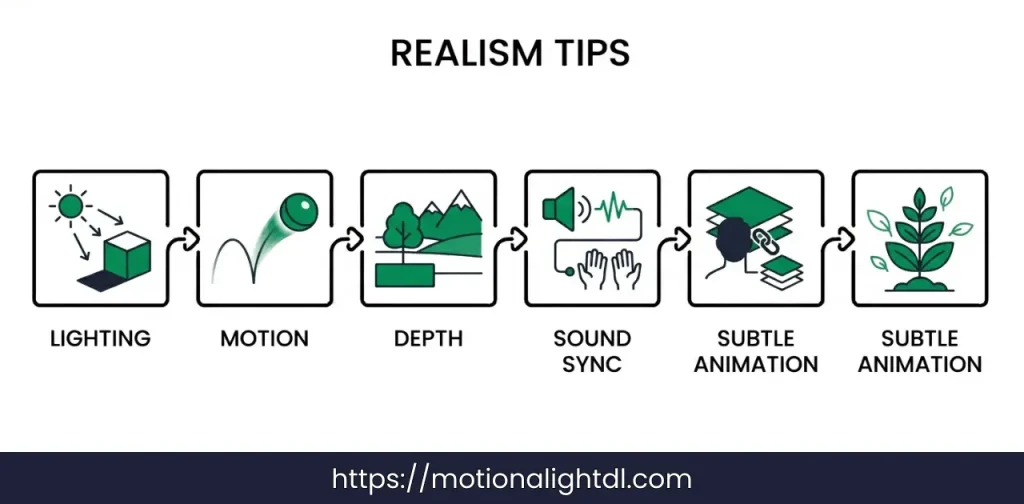
Creating effects is one thing, but making them look real is what actually improves your editing quality. In Alight Motion, realism comes from small details that most beginners ignore. If these elements are done correctly, even simple effects can look professional.
Lighting Consistency
Your effect must match the lighting of the original scene. For example, if your video is dark and you add a very bright glow or fire effect, it will look unnatural. Adjust brightness, contrast, and color so the effect blends with the environment instead of standing out awkwardly.
Motion Realism
Real-world objects don’t move randomly. They follow smooth and natural motion. When animating effects, avoid sudden jumps or unnatural speed. Use smooth keyframes and gradual movement so the effect feels believable.
Depth & Shadows
Adding depth makes your VFX look part of the scene instead of sitting on top of it. You can achieve this by placing effects behind or in front of objects using layers and masks. Shadows and slight blur also help create a sense of distance and realism.
Sound Sync
Sound plays a big role in how realistic an effect feels. For example, an explosion without sound feels empty, but when synced properly with a sound effect, it becomes impactful. Matching visual actions with audio timing improves the overall experience.
Subtle Animation Principle
One common mistake is overdoing effects. Realistic VFX are often subtle. Small movements, light flickers, or slight shakes can make a big difference. Instead of making everything intense, focus on controlled and balanced animation.
Common Mistakes to Avoid While Creating VFX
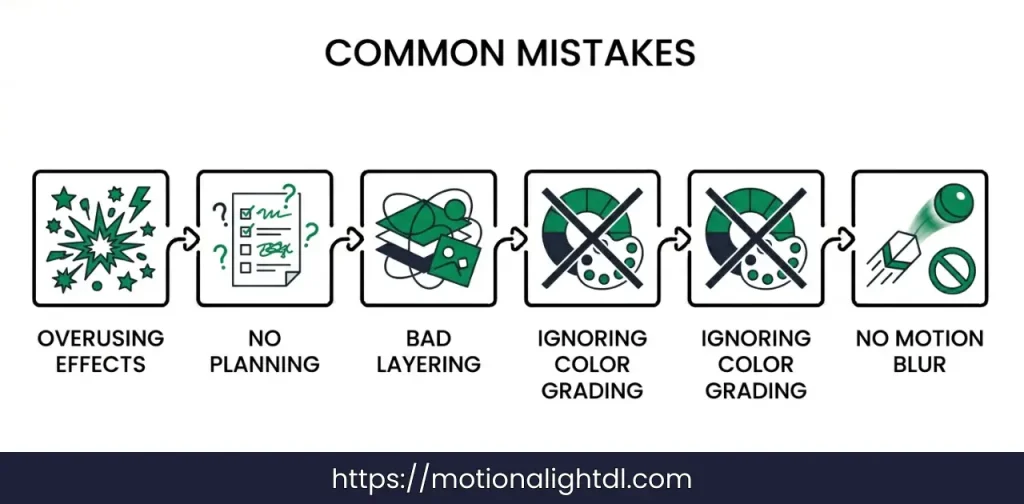
When working with VFX in Alight Motion, beginners often make a few common mistakes that reduce the overall quality of their edits. Avoiding these can instantly improve how professional your videos look.
Overusing Effects
Adding too many effects in one scene can make your video look messy and distracting. Instead of improving the edit, it confuses the viewer. It’s always better to use a few effects properly rather than adding everything at once.
No Planning
Jumping directly into editing without a clear idea often leads to random results. When you don’t plan your effect, layers and animations become inconsistent. Even a simple plan can help you create cleaner and more focused VFX.
Bad Layering
Incorrect layer order can break your entire effect. For example, if a glow or particle effect is placed above everything without proper blending, it will look unrealistic. Proper layering ensures that each element fits naturally into the scene.
Ignoring Color Grading
Many editors focus on effects but forget to match colors. If your VFX has a different tone than the background, it will look fake. Simple color adjustments can make a huge difference in blending everything together.
No Motion Blur
Without motion blur, fast movements look sharp and unnatural. This is especially noticeable in action edits or transitions. Adding slight motion blur helps smooth out movement and makes effects feel more realistic.
Conclusion
Special effects and VFX in Alight Motion are not just about using random presets, but about understanding how different tools work together to create a complete visual experience. From basic effects to advanced techniques like masking, particles, and animation, every step plays a role in making your edits look more professional. Once you start focusing on planning, proper layering, and realistic motion, even simple effects can stand out.
The key is consistency and practice. You don’t need expensive software to create impressive visuals, but you do need the right approach. By avoiding common mistakes and applying the techniques covered in this guide, you can gradually improve your editing skills and create VFX that truly captures attention.