Exporting and Rendering in Alight Motion

Exporting and Rendering in Alight Motion – Best Exporting Tricks in 2026 for Maximum Quality

Export and Rendering: You have completed your editing, but you’re confused about exporting and rendering? Well, every editor wants to export their videos in maximum quality and resolution, without knowing the export settings. You can’t achieve your desired results. Every social media platform allows us to upload videos in specific resolutions, FPS and Bitrate. Before we export and upload videos to that platform, we must have knowledge of the basic principles of exporting.

That’s the reason I am writing this guide. As technology is getting revolutionised day by day. Those social media platforms are also changing their algorithms and needs. The videos in higher quality, best resolution, and better frames and bitrates will perform better than the videos exported in default settings. Without wasting any time, let’s dive into it.
Exporting and Rendering in Alight Motion
Export and Rendering in Alight Motion

Settings for Exporting Videos

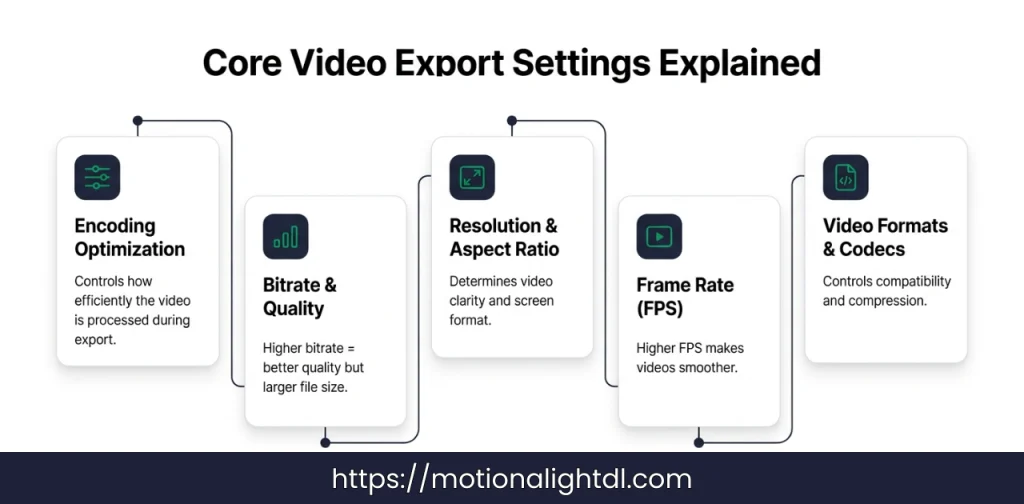
Every editing application uses its own rendering engine to compile your Composition into various video file formats. These are the settings (given below) which you can control to get your desired results. By tweaking them, you can achieve any video format, resolution, frame rates, bitrates and audio for your specific social media platform or professional project.
Video Export Settings in Alight Motion
Export and Rendering in Alight Motion
  • The Encoding Optimisation.
  • The bitrate and quality settings.
  • The video resolution and aspect ratio.
  • The frame rates for the video.
  • The Output video formats (MP4, MOV, GIF) and codecs.

Export Options in Alight Motion

Now we have learned the basic settings for exporting videos in Alight Motion. By playing and tweaking these settings, we can get any of our desired output results. Let’s do some practical experiments to export videos into multiple formats.

Exporting Videos in Alight Motion
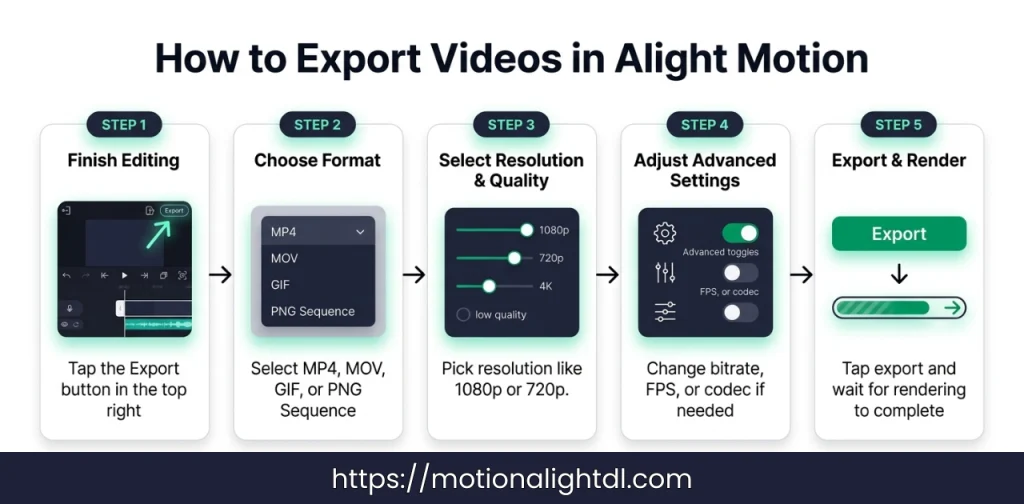
How to export videos in Alight Motion
Export and Rendering in Alight Motion

To export your videos in Alight Motion, follow these simple steps:

  • After finalising your editing, click on the export button in the top right corner of your project.
  • Select any video format such as MP4, MOV, GIF or PNG Sequence.
  • Now select the resolution and quality preset if you want a clean and crisp output.
  • For better results, you can also adjust the advanced encoding settings.
  • After doing all these settings, your project is ready to be saved in the gallery. Click on export, the rendering will begin, and your video will be saved. Rendering can take time, depending on your Composition.

That’s all. By doing this, you can export your videos and share them anywhere.

Different Export Options in Alight Motion
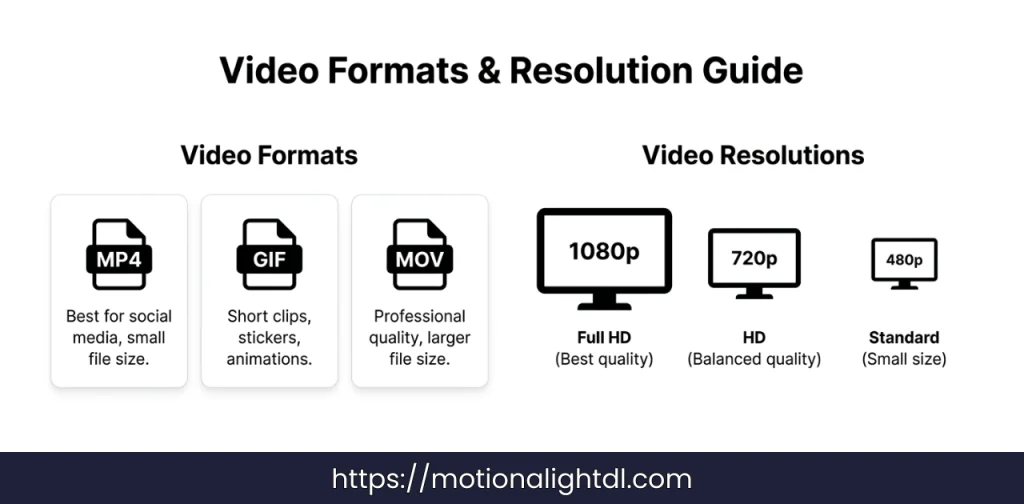
Video Formats & Resolution in Alight Motion Mod Apk
Export and Rendering in Alight Motion
  • Video Format: In Video formats, you will get several format options. A few of them are mentioned below.
  • MP4: MP4 is commonly used. It’s better for social media platforms and regular sharing. It is also used for some web-based projects. These files are smaller in size, but you may see a drop in the quality.
  • GIFs: GIFs are used for shorter clips. The common use for these types of videos is “stickers”. These are mostly used on Websites, WhatsApp, and Facebook. If you want to explain something or express your feelings in a short time, GIFs are the perfect choice. 
  • MOV: These formats are used for professional projects where quality matters. The quality will remain the same in these formats, but the file size may be increased. 
  • Resolution: Resolution controls the quality of your videos. The higher the resolution of your video, the clearer and crisper it will be. Some of the resolutions are mentioned below.
  • 1080p: The full HD resolution, clear and crisp videos. Used for TikTok and YouTube videos. 
  • 720p: HD format, but lower in quality than 1080p. Used for other social media platforms and websites. 
  • 480p: Standard video resolution, which is used for regular videos. It’s better if you want to save your storage. These types of videos have a lower file size compared to HD and FHD. 
  • Framerates: We all know that videos are sequences of images. Which are played in seconds. If a video has 30 FPS, it means 30 images will be played in a second. If your video has 60 FPS, then it will be played more smoothly than the video with 30 FPS. In short, the higher the FPS of the video is, the smoother it will be played. Normally, in Alight Motion Pro Apk, when you export videos, you will get the following FPS: 
  • 12 FPS
  • 24 FPS
  • 30 FPS
  • 50 FPS
  • 60 FPS
  • Bitrate: Bitrate means “how many bits should be processed in a second”. The video, which has a higher bitrate, will have higher quality, crisp and clear images. But the file size will be increased. 
  • Codecs: In simple codecs, the compressors compress the raw video file into a minimum size. They can be in both hardware and software codecs. In Alight Motion Mod Apk, you will get H.264 codec, which is commonly used as a software codec. It will compress your video into a minimum file size and maximum video quality. 
  • Audio: This option controls the audio of your video. You can export your videos into Mono & Stereo, any of them. 

Some Best Export and Rendering Settings in Alight Motion Mod

Here are some of the best export settings mentioned below. You can use it to export videos for your social media platforms.

Settings for YouTube and TikTok

  • Video Format: MP4 
  • Codec: H.264
  • Resolution: 1080p
  • Aspect Ratio: 9:16 for YouTube Shorts & TikTok and 16:9 for Long YouTube Videos
  • FPS: 30 FPS
  • Audio: Mono OR Stereo ( According to your project needs )
  • Bitrate: 10 Mbps will be best for quality. 

Recommended Settings for Social Media Platforms
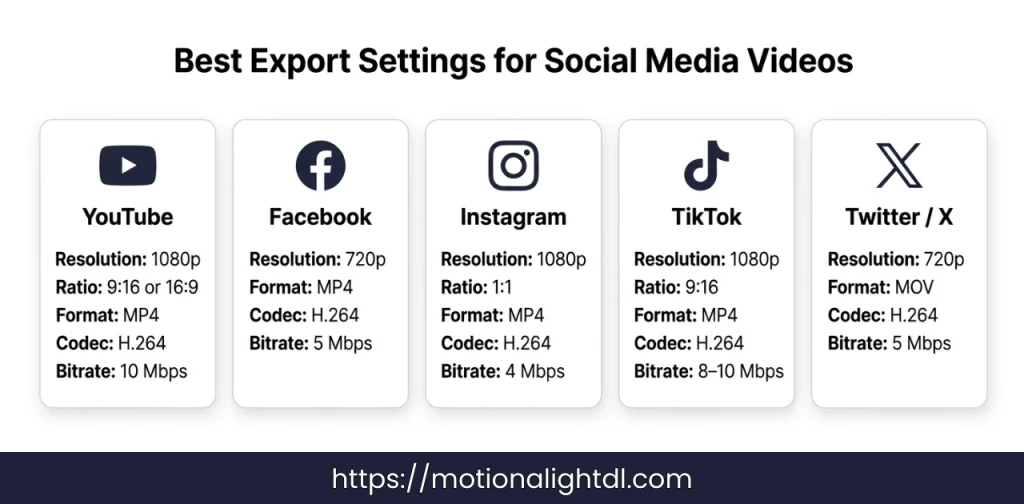
Export Settings for Social Media
Export and Rendering in Alight Motion
  • YouTube:
  • Res: 1080 p
  • Ratio: 9:16 (Short Videos), 16:9 (Long Videos)
  • Format: MP 4
  • Codec: H.264
  • Bitrate: 10 Mbps
  • Facebook:
  • Res: 720 p
  • Ratio: 9:16 (Short Videos), 16:9 (Long Videos)
  • Format: MP 4
  • Codec: H.264
  • Bitrate: 5 Mbps
  • Instagram:
  • Res: 1080 p
  • Ratio: 1:1
  • Format: MP 4
  • Codec: H.264
  • Bitrate: 8-10 Mbps
  • TikTok:
  • Res: 1080 p
  • Ratio: 9:16
  • Format: MP 4
  • Codec: H.264
  • Bitrate: 8-10 Mbps
  • Twitter (X.com)
  • Res: 720 p
  • Ratio: 9:16
  • Format: MOV
  • Codec: H.264
  • Bitrate: 5 Mbps
  • Professional
  • Res: Maximum
  • Ratio: According to your needs
  • Format: MOV
  • Codec: H.264
  • Bitrate: According to your needs

Exporting Problems in Alight Motion Pro

Sometimes exporting in Alight Motion can cause some issues and problems. In this section, we will identify those issues and solutions to fix them:

Issues in Exporting and Rendering in AM Pro Apk

  • The video is failing to be exported due to insufficient storage on your device.
  • Video quality has dropped due to over-compression while exporting. 
  • Video playbacks are glitching because you have exported the video without rendering the effects. 
  • Mismatch the composition resolution and exporting resolution. 
  • Application is crashing because you’re using a low-end device ( If Alight Motion is lagging while exporting, read this guide: Why Alight Motion is laggy? ) 
  • Your video is being exported in low-light footage. 

Troubleshooting exporting and rendering issues:

  • First of all, check the composition and exporting resolution. They should match the resolution. 
  • If you are editing a complex object, then render it before exporting the complete project. 
  • Reduce the effects on the clip which is failing to be exported. 
  • Play your videos on targeted devices to identify the quality issues. 
  • If the export problem is resisting, then adjust the codec and bitrate. 
  • If the rendering is stuck, then enable the maximum rendering. 
  • You need pre-comps clips/sections that have heavy effects before exporting and rendering. 

How to export VFX and Special Effects in Alight Motion Mod Apk?

  • Render each section separately with heavy effects before exporting the final project.
  • You need to pre-compose stacks of layers that have heavy effects.
  • Turn on “Render Only Effects” for the layers which have heavy and multiple effects.
  • You need to limit the particle numbers & physics properties before rendering. 
  • If you want maximum quality for your final project, then use MOV and ProRes codecs. 
  • Increase the bitrate to gain maximum details without color banding. 

Recommended Export Setting for VFX and Special Effects: 

  • Video Format: MOV or ProRes.
  • Resolution: Maximum Video Resolution according to Composition.
  • Bitrate: 10-20 Mbps.
  • Framerate: According to your Composition.
  • Codecs: ProRes HQ.
  • Maximum Render Quality must be enabled. 
  • Render Only Effects must be enabled. 

Similar Posts