How to Add and Copy Effects in Alight Motion – Expert Guide 2026
Effects play a major role in making videos look more engaging and professional. Without them, edits often feel plain and lack visual impact. When used correctly, effects can enhance quality, add depth, and bring life to your content. In Alight Motion APK effects are easy to apply but many beginners struggle with using them properly. They either add too many effects or do not understand how to reuse them efficiently. Learning how to add and copy effects is important because it improves both quality and workflow.
Instead of repeating the same steps again and again, you can apply effects once and reuse them across multiple layers. In this guide, you will learn how to add effects step by step, how to copy them correctly, and how to use them in a clean and controlled way so your edits look smooth and professional.
You may also like: Basic Tools in Alight Motion
What are Effects in Alight Motion?
Effects are tools that change how a layer looks or behaves. They help you improve visuals by adding adjustments, motion, or style to your content. You can apply effects to videos, images, text or shapes. Once applied, they modify properties like color sharpness blur or lighting. This allows you to enhance the overall appearance of your edit. Effects are not only for styling. They also help create transitions, depth and visual focus. For example, blur can soften the background while glow can highlight important elements.
There are different types of effects you can use:
The main goal is to improve your video without making it look overloaded. When used properly, effects make your edits look clean and more professional.
How to Add Effects in Alight Motion
Adding effects is a simple process once you understand the steps. The goal is to apply an effect to a layer and then adjust it according to your needs.
Follow these steps:
After adding the effect, you can customize it. Each effect comes with its own settings. You can adjust values like intensity, size, color or direction depending on the effect. You can also add multiple effects to the same layer. This allows you to create a more detailed look. However, it is important to keep everything balanced so the edit does not become messy. Preview your changes after applying effects. This helps you understand how the effect looks in motion and whether it needs adjustment.
How to Customize Effects
After adding an effect, the next step is to adjust it properly. Default settings rarely give the best result. Small changes can make a big difference in quality. Each effect has its own controls. You can adjust values like intensity size, direction color or softness depending on the effect. These settings help you shape how the effect looks. Start with small adjustments. Increase or decrease values slowly instead of making extreme changes. This keeps your edit clean and natural.
You can also combine multiple effects on the same layer. For example, adding a slight blur with a soft glow can improve depth. The key is to keep everything balanced so one effect does not overpower the others. Always preview your edit after making changes. Effects can look different when the video is playing compared to a still frame. Customizing effects is not about adding more. It is about controlling them properly to match your style.
How to Copy Effects in Alight Motion
Copying effects helps you reuse the same style without repeating the whole process. This saves time and keeps your edit consistent. Follow these steps:
All effects from the first layer will be applied to the new layer instantly. This method is useful when you are working with multiple elements that need the same look. Instead of setting each effect again, you can apply everything in one step. After pasting, you can still adjust the effects if needed. This gives you flexibility while keeping your workflow fast and organized.
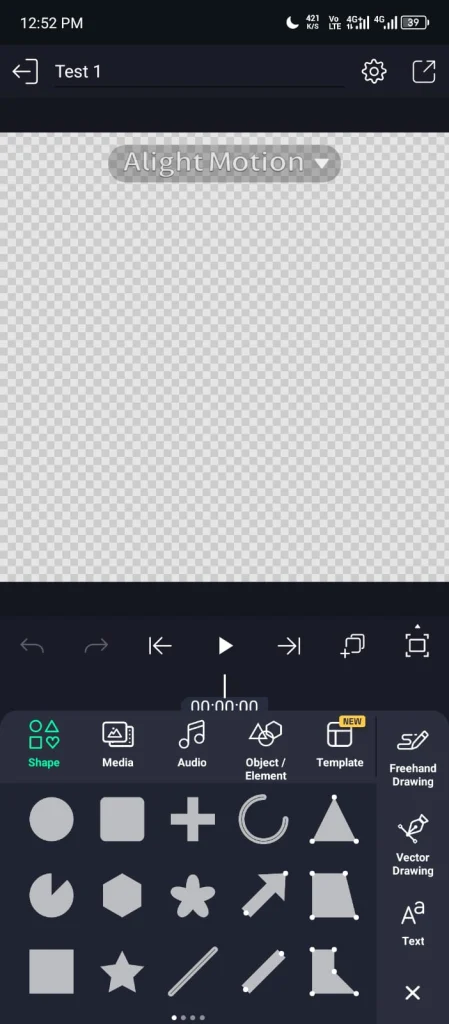
Why Copying Effects is Important
Copying effects is not just a shortcut. It improves your entire editing workflow and helps maintain a consistent visual style. When you work on a project with multiple layers, applying the same effect again and again wastes time. Copying allows you to reuse your work instantly. This keeps your process fast and efficient.
Consistency is another major benefit. When the same effects are applied across different elements, your video looks more balanced and professional. Random or inconsistent effects can make an edit feel unorganized. It also helps when you are experimenting. You can create one well designed effect setup and apply it to different layers. Then you can make small adjustments without starting from scratch. In complex projects, copying effects becomes essential. It reduces effort, saves time, and keeps everything aligned with your overall style.
Best Effects to Use for Clean Edits
Not all effects need to be used at once. A few well chosen effects can improve your video without making it look heavy or unnatural.
These effects are commonly used because they enhance visuals without overwhelming the scene. The goal is to keep your edit clean. Using a few effects with proper control always gives better results than adding many without purpose.
Tips for Using Effects Properly
Effects can improve your video, but only when used with control. Small adjustments often give better results than strong changes.
Using effects properly is about control and intention. Clean and balanced edits always look more professional.
Common Mistakes to Avoid
Many beginners reduce the quality of their edits by using effects incorrectly. Avoiding these mistakes will instantly improve your results.
Keeping your approach simple and controlled helps you create clean and professional edits.
Pro Tips for Better Results
To get professional looking edits you need more than just applying effects. The way you use them makes a real difference.
These small habits help you create cleaner edits and improve your workflow over time.
Conclusion
Effects can completely transform the quality of your edits when used correctly. They help you enhance visuals, add depth and create a more engaging experience for the viewer. Learning how to add and copy effects gives you better control and saves time. Instead of repeating the same steps you can reuse your work and keep your style consistent across the project. The key is to stay balanced. Use effects with purpose, adjust them carefully and avoid overloading your layers. Clean and controlled edits always look more professional. With practice you will develop your own style and use effects more confidently in your projects.