Remove Watermark in Alight Motion

How to Remove Alight Motion Watermark from Videos? – Some Advanced Techniques in 2026

Remove Watermark in Alight Motion: Watermarks in the videos are quite frustrating and disturbing. They remove the professionalism from the videos, making them visually dull. If you’re a social media content creator, YouTuber or Vlogger, then you need to add your own branding logo instead of a watermark. The Watermark in Alight Motion can be removed by purchasing their Pro subscription.

But most of the users can’t afford its premium plans. That’s the reason I am writing this complete guide. We cover methods for removing the Watermark and, at the end, discuss professional tips. Let’s get straight into this guide.
Remove Watermark in Alight Motion

What is a watermark in Alight Motion?
Watermark in Alight Motion

Before we get deep into the methods for removing Watermarks, let’s first understand what a watermark is and why it is added to videos. A watermark is a transparent layer that can contain text or a logo, automatically added to videos when you export them. You will get them in several editing apps, such as Alight Motion, Kinemaster, and CapCut.

Watermarks are added to videos to brand the editing application so that consumers can identify the source of the editing. In this way, they promote their app and separate free users from the VIPs. When you purchase the premium version of the application, it will be automatically removed from the videos. So, this was the core concept of watermarking in Alight Motion and other editing apps.

Why Remove Watermark in Alight Motion?
Why to Remove a Watermark?
Remove Watermark in Alight Motion

Do you want to master an advanced editing technique in Alight Motion? Check out this Masking in Alight Motion.

There are several benefits of removing the Watermark from the Videos. A few of them are mentioned below.

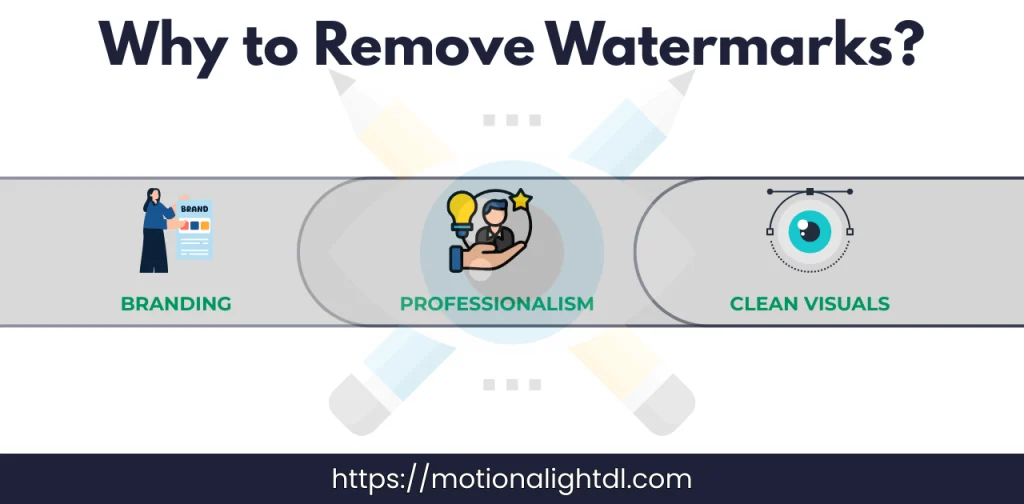
  • Professionalism: Removing watermarks from videos will make them look professional, clean, and visually appealing. Since there is no transparent layer in your videos promoting the editing application, this video can later be used for various commercial purposes, such as social media, business presentations, and Personal projects. 
  • Branding: Removing a watermark is necessary for some brands, businesses, and content creators. After removing the Watermark, they can add their own branding logo. That looks more professional and branded. In this way, they can promote themselves instead of editing an application. 
  • Visually Appealing: Removing watermarks from your videos makes them cleaner, distraction-free, and more professional. Your audience will focus solely on the videos, not on those watermarks. 

Methods for Removing the Watermark from Alight Motion Videos
Watermark removing methods
Remove Watermark in Alight Motion

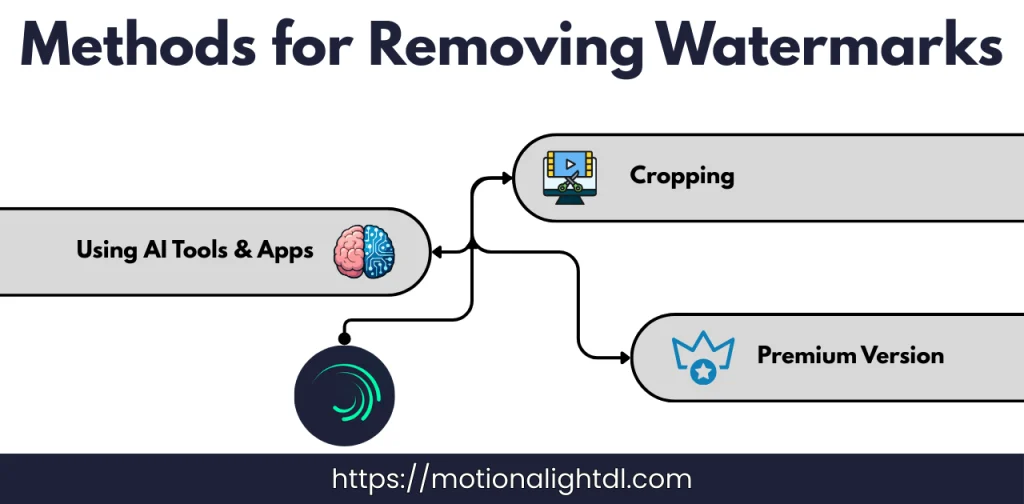
Cropping The Videos

This method is free and the easiest on the market for removing watermarks from videos. For this, you need a simple editing application (less advanced) for removing the watermarks. An app must include basic editing tools, such as cropping. You can find a bunch of editing applications on the AppStore and the Play Store. When you find that app, follow these steps:

  • Import the video: After installing the application, open it and grant it all the necessary permissions (mainly storage permissions). Then import the video you want to remove the Watermark from.
  • Crop the Video: Open the basic editing tools and select Crop. In the crop section, don’t select pre-built cropping options. Choose “free-form” cropping and exclude (Crop) the part that contains the Watermark. After doing that, preview the video, and if the Watermark is gone. Else, undo the cropping, re-crop it, and export it when you’re satisfied. 
  • Export the Video: After cropping the video (removing the Watermark), export it at the highest quality, as close to the original as possible. So the video quality remains the same. 

Watermark Removing Apps and AI

There are a bunch of applications available on the App Store and Google Play Store. These apps are primarily designed to remove watermarks from videos. Some of those apps have in-app ads OR paid plans. If you’re not interested in applications, you can use Web-based AI tools, which work the same way as those applications. Follow these methods to remove the Watermark using the application.

  • Install the Application: Install any watermark-removing application from the Store. There are multiple applications available specifically designed to remove watermarks. 
  • Import the Video: Import the video file from which you want to remove the Watermark. For a web-based tool, the process will be the same as for an application. Using the file picker, import the video. 
  • Remove the Watermark: After importing the video, look for the watermark removal feature. Follow the on-screen instructions, and the application’s AI system will automatically detect and remove the Watermark. The same process will apply to web-based tools like these applications. This will work frame by frame and remove the Watermark from each frame. The whole process can take a long time, depending on when your video is scheduled. The longer your video is, the longer it will take to remove it. 
  • Export the video: After successfully removing the Watermark from the video. Export your video at its original resolution and frame rate. Some apps and web tools may require a paid subscription. So, choose wisely. 

Use Alight Motion Premium

Suppose you use Alight Motion frequently for professional projects. Then it’s highly recommended to use the Alight Motion Premium. In this way, you don’t need to crop videos, OR use third-party applications to remove the Watermark. Once you become a Pro user of Alight Motion, all your videos will be exported without any watermark. Follow these steps to be a Pro user in Alight Motion.

  • Open Alight Motion, navigate to your account settings. If you don’t have an account, then create one using the Sign up feature.
  • Under the account settings, look for paid subscription and pro plans.
  • From the plans, select one that meets your needs. These pricing and plans can be checked here.

Comparison of Methods: Which method should you choose

As we have discussed, multiple methods for removing the Watermarks. Each method has pros and cons. You need to choose wisely according to your needs and requirements. Here is the comparison of all methods given below.

Cropping Videos

This is the free, simple and easiest method for removing the watermarks from videos. With a few steps, you can remove any Watermark from videos. It’s the best method if you don’t care about video quality. Here are the pros and cons:

Pros

  • Free of cost
  • Suitable for only one Watermark.
  • Easy and simple method.

Cons

  • Reduce the video quality and frame rates.
  • It will not work if your video has more than one Watermark.

Applications & AI Tools

This method is best if you want the same video quality as it was before removing the Watermark. Moreover, this method is recommended if your video has 2 to 3 watermarks. You must have technical knowledge to use this method. It may require some additional tools to work effectively.

Pros

  • Video quality will remain the same before removing the Watermark.
  • You can easily remove the 2-3 frameworks in a single video.
  • Best for some professional videos.

Cons

  • May require some additional tools.
  • You must have technical knowledge to use this method.
  • Sometimes it can’t remove complex watermarks, such as those that are too noisy or too tiny.

Paid Subscription

A paid subscription is the best of these methods. But not every user can afford the paid subscription, or they don’t wanna be pro. If you work professionally, then you need to purchase the paid plan of Alight Motion.

Pros

  • No need to use any third-party applications or tools to remove watermarks.
  • Export unlimited videos in any quality format without a watermark.
  • Best, premium and reliable source.

Cons

  • Expensive for some users to purchase the premium version. 

Pro Tips for Removing the Watermark
Pro Tips for Removing Watermark
Remove Watermark in Alight Motion

Here are some pro tips for removing watermarks from your videos and exporting them at the highest resolution to maintain video quality.

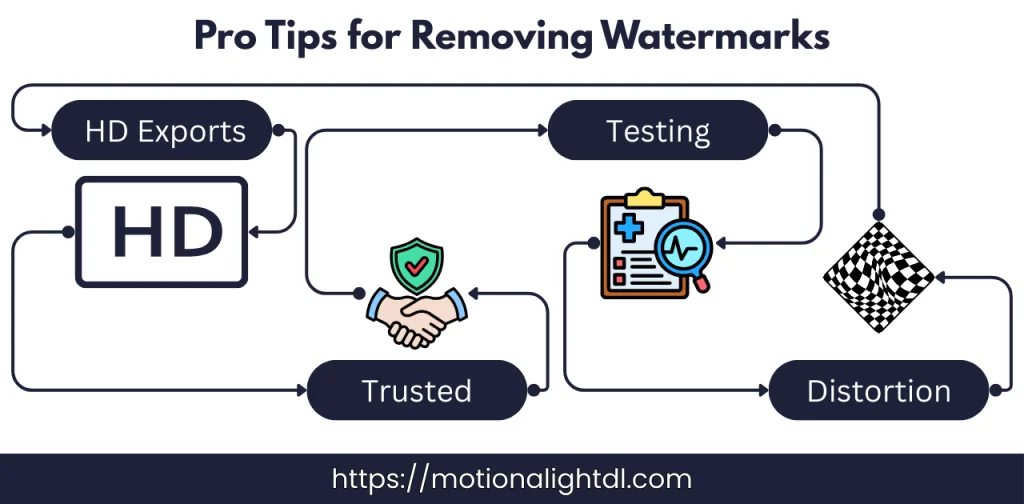
  • Higher-Resolution Apps/Tools: If you are using third-party applications to remove the Watermark. Then choose the apps that let you export your videos at a higher resolution. Most apps are missing this feature. 
  • Choose trusted, reliable tools and apps: Always use third-party applications to remove watermarks from videos. Before selecting any tools/apps, check their reviews, ratings, and user feedback. 
  • Testing and Previewing: Before you make any final decision on your editing. Always test and preview it, whether it’s working as needed or not. When you’re satisfied, then export it. 
  • Avoid Distortion: When you crop the video to remove the Watermark, then export it to its original aspect ratio to avoid distortion and resizing.

Final Words

Remove Watermark in Alight Motion: Watermarks in any video can ruin the visual quality. Nobody loves them; instead of those in-built watermarks, editors want their own logos for branding and promotion. But it can’t be done in the free version. Most of the users want to export their videos cleaner and distraction-free. This guide on removing a watermark in Alight Motion will help you a lot. Using these methods, you can easily remove them from any video.


FAQs

Yes, if you are using legal methods, such as purchasing the Pro license for Alight Motion or using the tools and applications.

Purchasing the official Alight Motion membership is the best and legitimate way to export videos without any watermark.

Using the modified application can violate Alight Motion’s terms & policies. Never use them; they can be risky, harmful, and involve legal issues.

Cropping videos is one of the best free methods for removing a watermark. You can also use applications and AI-based web tools to remove them.

Similar Posts