Layers Parenting and Null Objects in Alight Motion

Layer Parenting & Null Objects

What is Layer Parenting & Null Objects in Alight Motion – Complete Guide to use in 2026

Alight Motion is one of the best smartphone editing applications on the market. It comes with many premium features and editing tools. In this guide, we will discuss the two well-known editing features of Alight Motion. Layer parenting and null objects. When we animate complex objects in Alight Motion, we have to animate each layer of the object separately, manually, which can take a long time.

To solve this problem, Alight Motion has introduced Layer Parenting. Using it, you can link all your layers (child layers) to the master “Parent” layer. When you make specific changes in the Parent layer, they are automatically applied to its child layers. These settings may include scaling, positioning, rotation, etc.

A null object is an invisible layer that behaves like a layer’s parent. It is used to get more control over the animation. If you are animating a complex object, using both will give you an edge and a super advantage. Now, let’s discuss each tactic in detail. Learn about Camera Objects in Alight Motion by reading this detailed guide. 
Layer Parenting in Alight Motion

What is Layer Parenting?

What is Layer Parenting?

Basics of Layers Parenting

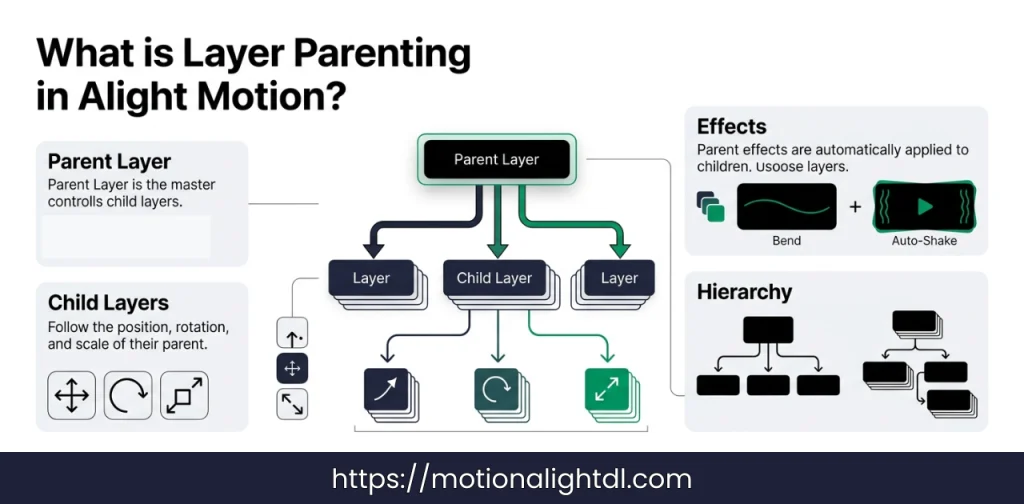
  • When you make a parent of the layers, it links all the layers in the hierarchy. Any change to the parent layer will affect all its children.
  • The parent layer may contain multiple children, but each child layer has only one parent.
  • The parent layer controls several properties of its children, such as scaling, rotation, and positioning.
  • When you apply a specific effect to the parent layer, such as Auto Shake, it will also be applied to its child layers.
  • You can remove a layer’s parent by selecting the layer and setting its parent to None.

How to Parent the Layers?

How to parent layers in Alight Motion

Following these steps, you can parent layers easily:

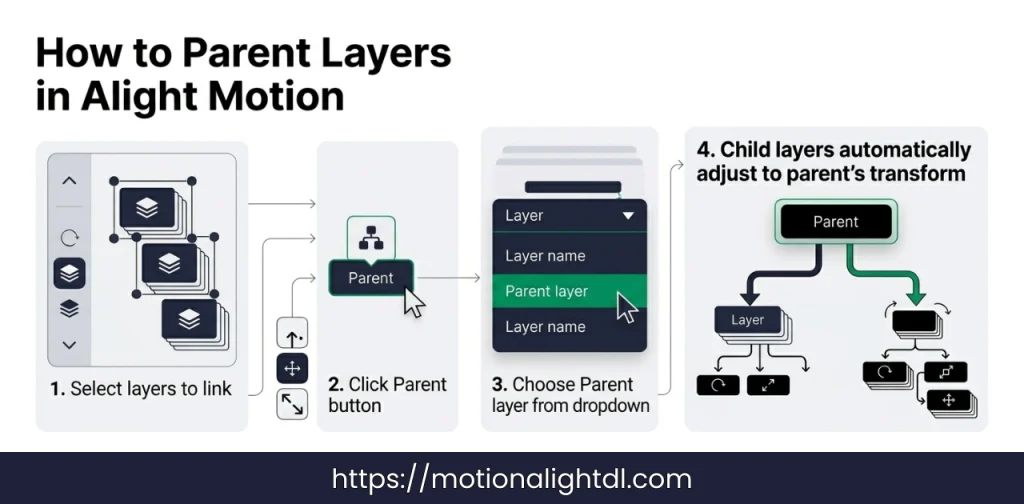
  • First, select the layers you want linked to the parent.
  • Now, click on the parent button next to it.
  • Now you will get a dropdown, select the parent layer from it.
  • The layer will be linked to its parent instantly.
  • The child layer will adjust its position based on the relative transform.

How to Use a Parenting Layer?

The parenting layers can be used in many effective ways. The primary use of the parent layer is to animate complex objects. Here are a few usages mentioned below.

  • Positioning: if you are animating an object that has multiple layers. Then changing the positions of these layers separately can take a long time, and you may feel bored while doing so. In this case, you can use the parent layer and link all the layers to it (the layers you want to change the position of). So when you change the position of the parent layer, it will automatically be applied to its children. 
  • Rotating: Same as positioning, you can also rotate child layers. When you rotate the parent layer, its children will rotate in the same direction and at the same angle. 
  • Scaling: You can also control the scaling of children with the parent. Instead of scaling each layer up or down, you can link them to the parent. Whenever you change the parent’s scale, the children will be automatically scaled to match it. 

Changes you make to the parent layer will not stop the effects, even if the layers are overlapping. Keep in mind, it’s the children who follow their parents. A tiny change to the parent will automatically propagate to its children. Changes you make to child layers will not affect their parent. Also, the layers’ positions on the timeline don’t affect the parent-child relationship. You can enhance your overall animation by using masking in Alight Motion. 

What are parenting grades?

You can add multiple children to a parent layer as many times as you want. But each child layer in your timeline will have only one parent. However, a parent layer can be a child of another parent layer. This will create more complex animations and form a chain of animations.

What are parenting effects?

As we have discussed, moving, rotating, and scaling. There are a lot of effects you can apply to the parent layer. When you apply the effect to the parent, the child will follow it. For example, when you add Bend, Auto-Shake, Swing, and Oscillate to the parent, they will also be applied to its children. All these effects can be found in the “Layer Parenting” section under the “Effects Browser”.

You can also move the child layers using custom curved paths created in vector drawing. When you add the “Move along path” effect to the child layer, it will start moving along the parent layer.

Null Object for Parenting
Using Null Objects
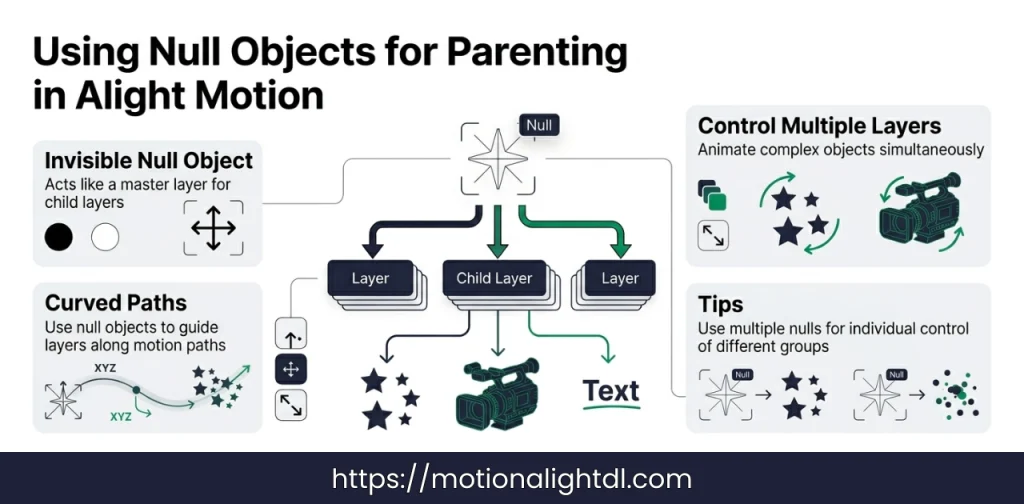
  • Null objects are invisible layers used to parent other layers.
  • You can use null objects to link the layers instead of linking them directly.
  • When you animate the null object, it will animate its children simultaneously.
  • Using parent objects, you can group multiple layers under one parent.
  • It allows you to animate complex objects by linking their layers.

Tips for using Null Objects

  • If you want to create layered motion, you can use a null object and move it on different axes.
  • For creating curved motion paths, you can change the ease of null objects.
  • Use a null object when a child layer needs individual control.
  • You can put different child layers under separate null objects.
  • Null objects are also used to see the movement path of their connected layers.

Troubleshooting Parenting Layers

  • If your animation isn’t working accurately, review the group (hierarchy) of the child layers.
  • Always use the parent layer when all layers are in the starting position to avoid sudden jumps.
  • Don’t make too many children under one parent, as it will make the hierarchy complex.
  • If the child layer is behaving unpredictably, then check the Parent Helper setting to identify the issue.
  • If performance is slow, combine the nested layers into a precomposition.

When to use Parenting?

Why to use layer parenting
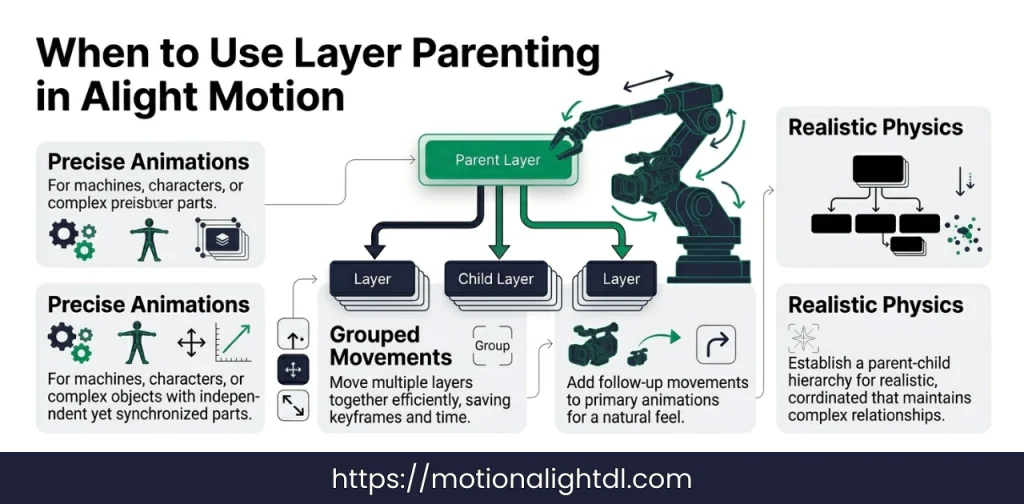
  • If you are animating the objects, you need precise animations and physics, such as for machines and characters. Then use Parenting.
  • The layers that need to be moved together. You can group them under the parent layer.
  • If you want to add the secondary motions to the primary animation.
  • Parenting can be beneficial when creating complex but coordinated layer animations.
  • If you want to reflect real-world physics in your animation.

Final Words

Parenting lets you combine different graphic elements into detailed animations, like machines, structures, or characters. Using null objects makes it easier to manage complex groups of layers. Creating clear parent-child hierarchies is important for making smooth, synchronized animations in Alight Motion. By understanding these basics, you can create impressive animated sequences.

Similar Posts