How to Fix Lag Issues in Alight Motion – Latest Guide for Especially Low End Devices 2026
The most demanding, popular and all-in-one editing application in the market is Alight Motion. This is used by professional editors, content creators and some small production houses. It offers many premium features, including Presets, Keyframe Animation, Effects, and Filters. But most users experience lag on their devices while editing heavy projects.
That’s why this complete guide about Alight Motion Lagging is being written. We will cover the reasons behind Alight Motion Lag and some solutions to overcome it if you’re one of those who experience lagging issues in Alight Motion. Read this complete guide, and fix all the problems before editing another complex or heavy project.
Why is Alight Motion Laggy?
You will mostly experience this lag issue while editing heavy projects, animating complex objects, and using heavy Alight Motion libraries. When you edit these types of projects, you use multiple keyframes, filters and effects, transitions & presets. All these assets put a lot of burden on your mobile’s processor & RAM.
Alight Motion can disrupt your workflow and cause issues while editing such projects, leading to lag. Because of this, you can’t deliver what you expected. You may experience this on both the Alight Motion free & pro versions. This happens on low-end devices due to low memory, storage and a weak processor. So, the device becomes unable to handle such a big project, and Alight Motion starts lagging.
To overcome this, the following steps, problems and their solutions are explained. After reading this, you will solve the lagging problem and will be able to deliver your next project as you have expected.
Reasons Behind Alight Motion Lagging
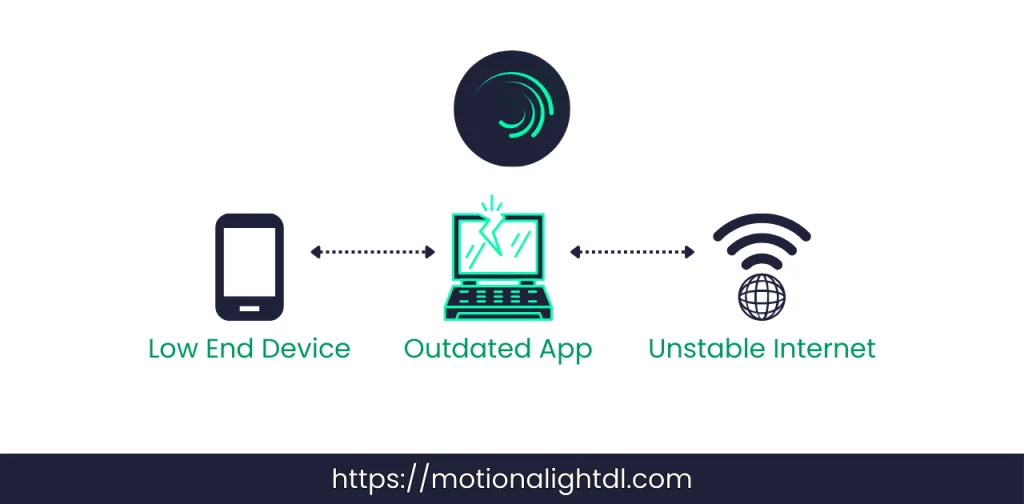
Alight Motion only becomes laggy while editing heavy projects with multiple layers, images, text, and media. Moreover, this issue was noticed on the latest version of Alight Motion in 2026. Many users have reported that Alight Motion is slow. Now let’s discuss why it is happening.
Low end Device
You are using a low-end device with 2 GB of RAM or an outdated processor. If you have this, you will be unable to edit 2K or higher FPS videos, even though it can cause issues on Android 10 when exporting videos in high-quality settings, such as UHD at 45-60 FPS.
Editing Heavy Projects
Editing heavy videos, using large images, and working with multiple layers in a single project can slow down your editing. Using XML Support, presets, premium effects, filters, and keyframes in a single project might crash your device. It will become unable to handle for your device, even if you’re editing it on a medium-end device.
Outdated App
Sometimes using an outdated version of the application causes such problems. Make sure you’re using the latest version of Alight Motion, which comes with major bug fixes and improvements. Never use any modified application of Alight Motion. Always use the official, premium version of Alight Motion from the Play Store.
Using All Effects in a Single Project
Every editor wants their project to be highly appealing and engaging for their audience. To achieve the results they expected, they use multiple effects, VIP XML presets, premium filters, animations, and keyframes. They use a bunch of effects on a single layer. In this way, they experience lag in Alight Motion, app crashes, and other issues.
Background Process
Running multiple apps in the background will steal your device’s RAM. For Alight Motion, there will not be enough memory to handle such a big project. It will slow down your editing, and you may experience performance issues.
Internet Issues
Some effects and filters need a strong Internet connection to load and apply properly in your projects. Moreover, if you are using the syncing feature, you also need a strong, stable internet connection. A slow or unstable internet connection can slow things down, and you might experience lag in Alight Motion.
Compatibility Issues
Before installing Alight Motion and working on heavy projects, ensure your device is compatible with the latest version. For more information and a detailed guide, check out the Alight Motion System Requirements to see whether your device is compatible.
How to Fix the Lag in Alight Motion?
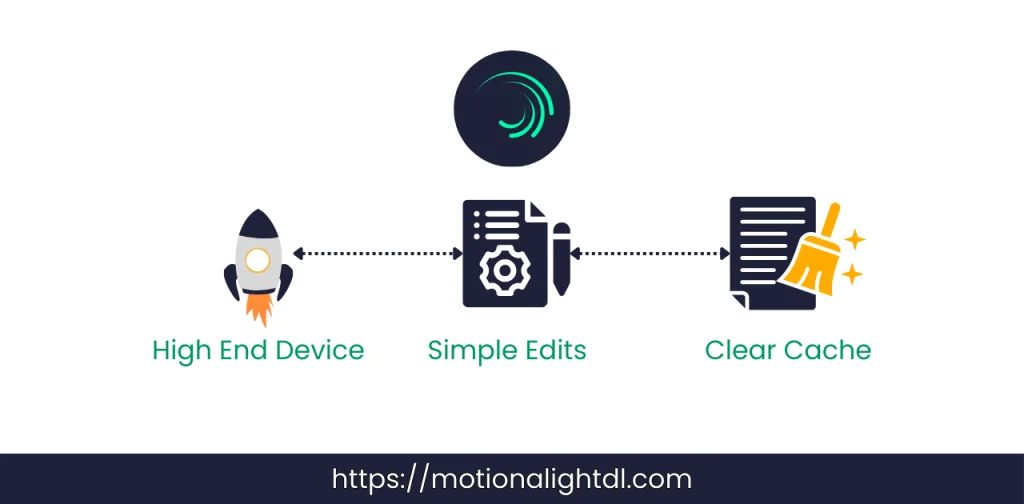
To avoid any frustration and edit the projects with flow and lag-free. Read the following solutions and apply them accordingly.
Ensure Your Device Can Handle
Alight Motion works well on all kinds of devices. But that’s what matters, whether you’re editing the effects and assets you are using in your project. The more complex your project is, the more it will require high RAM, storage, and a strong processor. If your device is running slowly or is outdated, then try these steps:
Simplify the Projects
Heavy edits with multiple layers and effects can slow down your phone. Try the following tips to get back in the editing game:
Use the Updated Version
Using an outdated version of the app will cause crashes and lag. Always use the updated version and regularly check for updates. To update the Alight Motion, try these steps:
Try different export settings.
When you export your videos at high resolution and frame rate. It can cause Alight Motion lag. Instead of exporting in high-quality, try these settings and steps to avoid lag.
Clear App Cache
Sometimes clearing Alight Motion’s cache can speed it up and make your editing smoother. By following these steps, you can easily clear the cache of Alight Motion:
Use the Alight Motion Pro ( Optional )
Alight Motion free works well for basic edits, but you may face ads and a watermark in the exported videos. Switch to Alight Motion Pro for better performance, premium tools and lag-free edits. These advantages you will get when using AM Pro.
Using Modified Applications
Most users install the modified version of Alight Motion to unlock premium features for free. These modified applications are unofficial and don’t have any support. Some of those versions include unknown code injection and malware that can take down your high-end device. Instead of using them, purchase the paid subscription to Alight Motion.
Recommended Lag-Free Version of Alight Motion
Final Words
I hope Alfred, reading this “Alight Motion is lagging” guide, will find all the solutions. We have discussed all the reasons why your mobile and editing are slow. Also, we have covered some solutions to overcome those issues. Whenever you encounter any of those issues, try the solutions explained in this guide. In this way, you can edit lag-free and stress less.